This website offer some workarounds for you to maximize the use of your iContact Email Marketing software. Please bear in mind that iContact has a built-in knowledge base that may contain more updated information. You may want to check it from time to time if you haven't done so. You should find it on the upper right part (near) where your drop down menu is located. This is represented by "01" in the screenshot above.

Showing posts with label Sign-up Forms. Show all posts

Thursday, March 27, 2014

Add Contacts


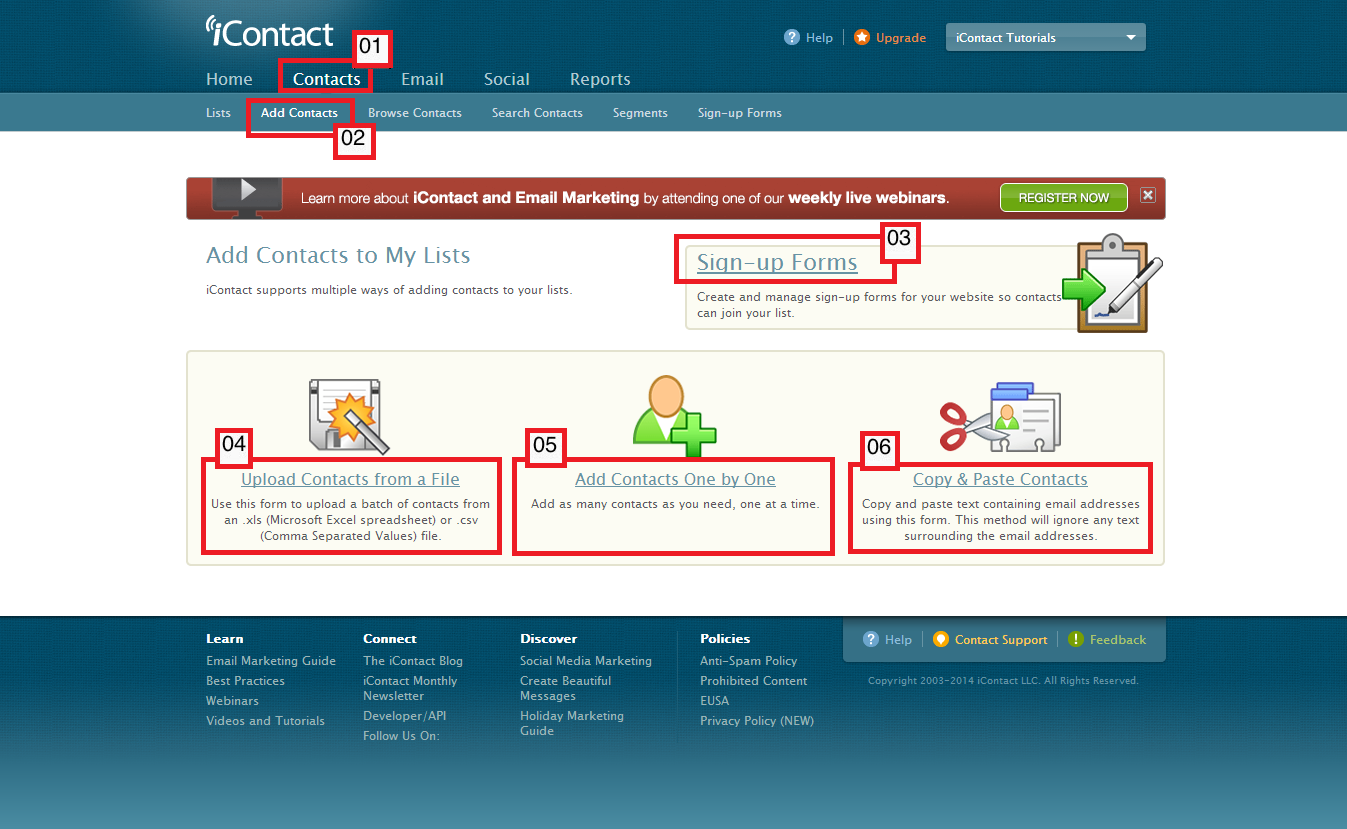
Now we go to your "Add Contacts to My Lists" page. This portion of your iContact allows you to choose among options on how you can add your contact(s) in your list(s). It also allow you to access the page where you can create your sign-up forms.


01. To go to the "Add Contacts to My Lists" page you must first click on the "Contacts" tab, which should take you to the "Contacts" tab page. A dark blue bar should also appear just below the "Contacts" tab that you just clicked, and should give you more options; "Lists", "Add Contacts", "Browse Contacts", "Search Contacts", "Segments", "Sign-up Forms"
02. The "Add Contacts" option is the one that you need to click next.
03. This option brings you to your "Create or Edit Sign-up Forms" page, where you can begin building your sign-up form.
04. The "Add Contacts from a File" option should bring you to a page that will allow you to upload or import the email addresses of your contacts through supported files.
05. The "Add Contacts One by One" is another option to upload or import contacts to your iContact Email Marketing software.
06. Another interesting feature is the "Copy & Paste Contacts". It allows you to just copy multiple email address from a source and paste them all on the text box from this page.



Tuesday, March 18, 2014

The Contacts Tab


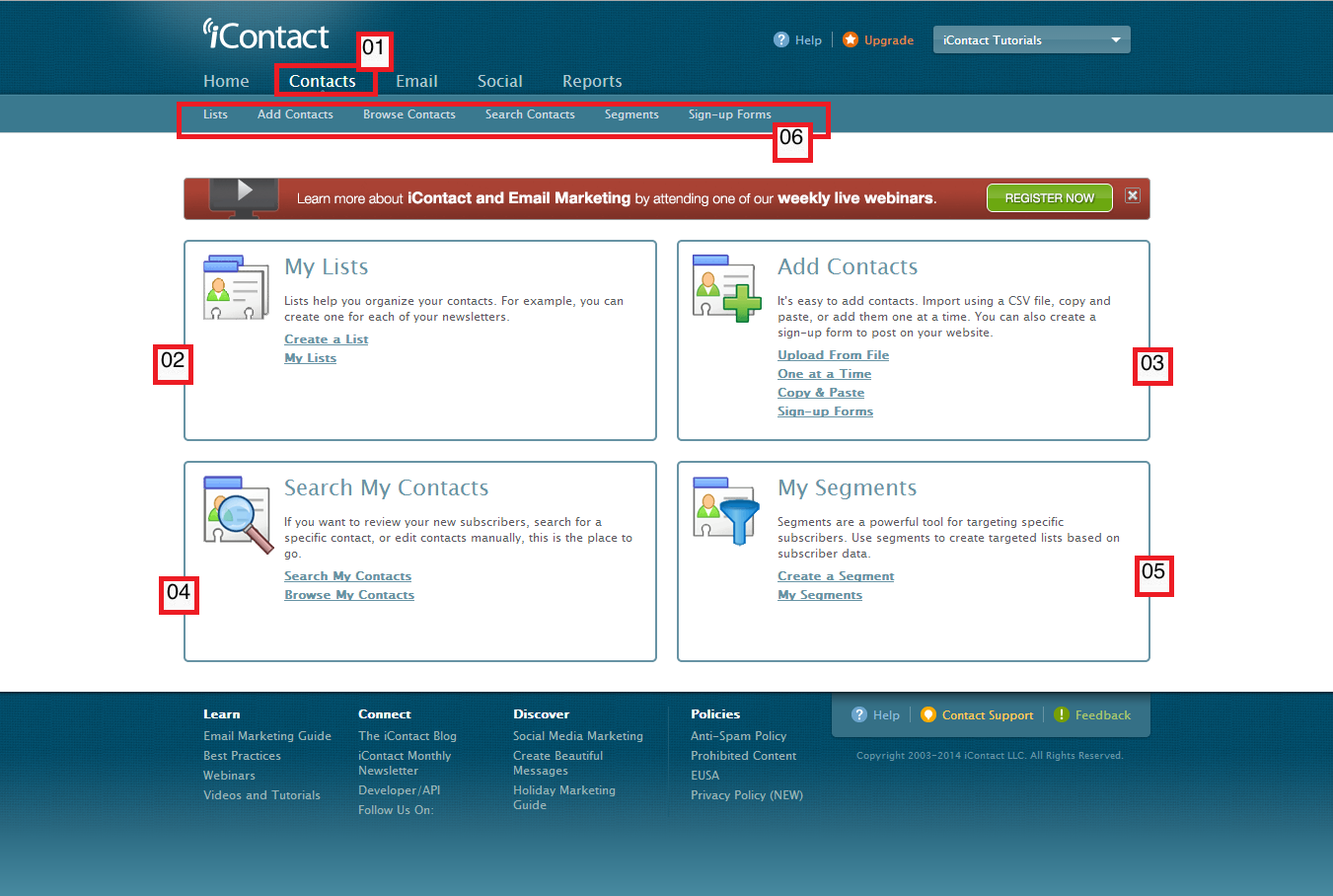
A number of cool features can be tapped when you access the "Contacts" tab. Features such as lists creation, contact search, adding contact(s) to one or more lists, segments creation and more. The "Contacts" tab is the second mostly clicked tab in your iContact Email Marketing Software.


You may access the "Contacts" tab by clicking on the upper part of your iContact Email Marketing Software where it shows "Contacts". This should be in between the "Home" and "Email" tabs.


01. This is the link that you need to click to take advantage of the features the "Contacts" tab contain.
02. The "My Lists" portion takes you to a page that would allow you to view or create list(s).
03. The "Add Contacts" takes you to that part in your iContact Email Marketing software that will allow you to upload your contacts' email addresses or create a sign-up form for your Facebook or HTML-based websites.
04. This "Search My Contacts" category allows you to go to that part in your iContact Email Marketing software to search for a specific email address by typing it on a search box, or browse the email addresses contained in your list(s).
05. "My Segments" would then allow you to go to a page where you can create or edit your iContact Email Marketing software segments. Segments are a powerful tool for targeting specific subscribers.
06. The dark-blue bar that gives you the options under the "Contacts" tab. As of this writing, it shows "Lists", "Add Contacts", "Browse Contacts", "Search Contacts", "Segments", "Sign-up Forms".


To wrap things up, the "Contacts" tab is what you will most likely access if you are doing these tasks:
  • Browse your list(s) and its respective contacts.
  • Create / edit / delete your list(s).
  • Create / edit / delete segments.
  • Create sign-up forms that you can use with your Facebook or HTML-based websites. Other platforms like WordPress would need a third party widget / API.
  • Edit your contacts' personal information such as first nasme, last names, and so on.
  • Search a contact by typing in their email address.
  • Upload the email addresses of your contacts to any list(s) of your preference.
  • View your contacts' history.


iContact Tutorials Copyright © 2014 -- Based on design by O Pregador